
Using Interlinea
The desktop app and the browser client have the same pages, laid out the same way: Projects, the editor, Memories, Terminology and Settings, and Accounts on a team server. The screenshots here are of the browser client; the desktop app looks the same.
The desktop app works on its own, with your work in its data folder. The browser client works on its own too, with your work kept in the browser. Both sign in to team servers, where projects, memories and termbases are shared.
The interface is in English, German or Korean: Settings, Interface language. By default it follows the language of the browser or the system; the browser client switches at once, the desktop app when it is started again. Documents, projects and termbases keep their own languages.
Trying it out
Section titled “Trying it out”The browser client starts empty. Your work is saved in the browser (IndexedDB) as you go:
projects with their files, translations, termbases, memories, templates and
settings are there again on the next visit. Settings shows whether saving
works in this browser and can delete everything kept there; ?reset in the
address does the same on load.
To look around before bringing your own files, add ?sample to the
address: it adds a sample project (a tenancy agreement of an invented law
firm, a real Word file in web/samples) with its master termbase, a
project termbase that has changes to review and merge, and a translation
memory. What you already have stays.
Projects
Section titled “Projects”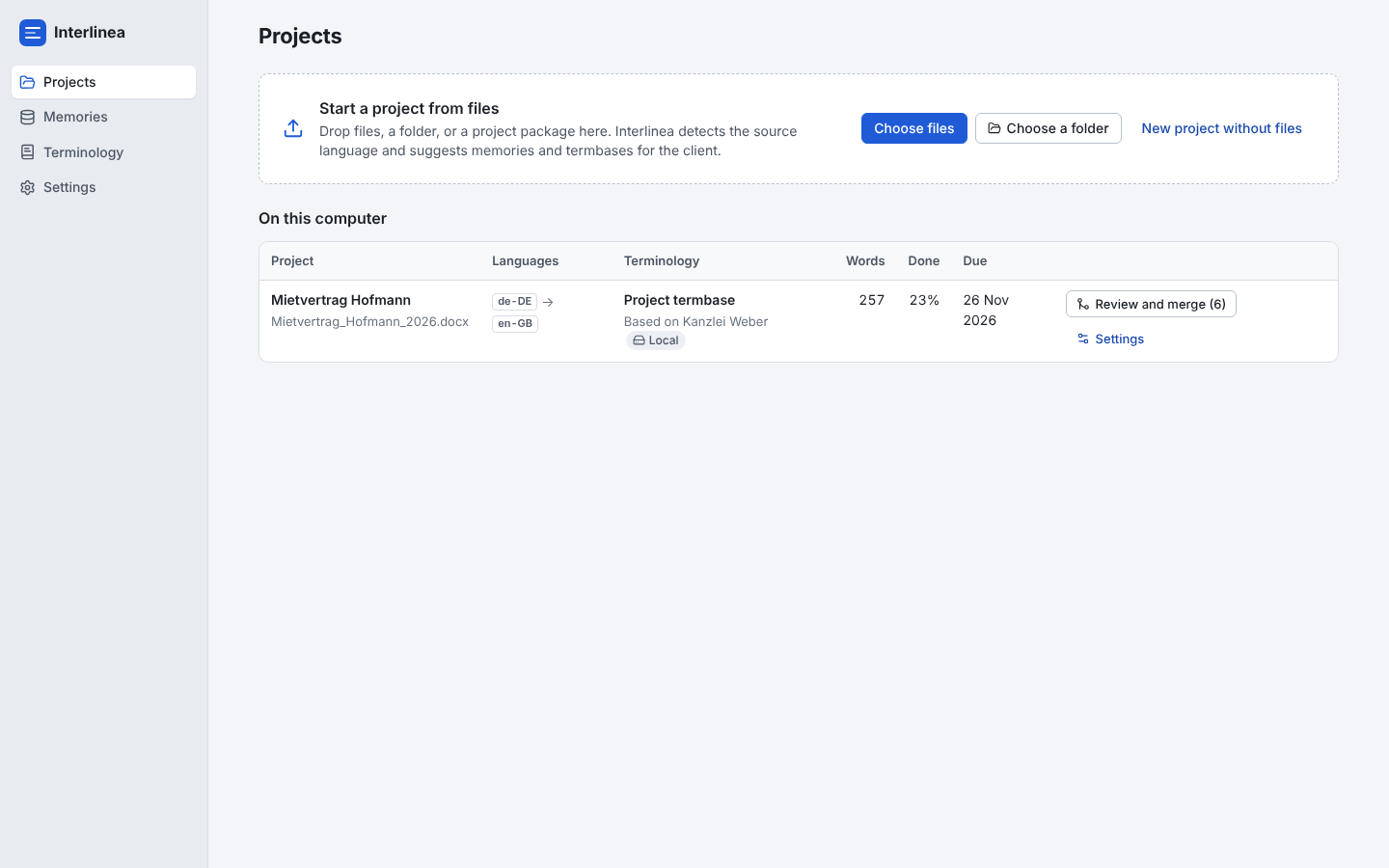
New project starts blank, from a template, or like an earlier project, then takes the files and languages, the memories, the terminology and a review, each checked by the core’s project validation:
- several files and whole folders, kept with their paths; each file is translated or a reference file (what Interlinea can’t read becomes one); a Trados package (.sdlppx) becomes one project with all its files;
- one source and several target languages; a bilingual file is translated only into the language it was made for;
- name, client, due date and description;
- memories per target language, in priority order, each used for lookup, concordance and updating as chosen, with a penalty in points; new memories, empty or from a memory file (TMX, Trados Studio, Wordfast); a project memory per language that collects confirmed translations;
- master termbases suggested for the client; a master lacking a project language gains it only when you choose so; where new terms go; where the project termbase is kept; whether master changes come in on opening;
- the core’s quality checks to run, a spelling dictionary per target language, words always spelled right, rules of the project’s own (regular expressions), the context match rule, pre-translation (lowest match, which matches are confirmed), the core’s analysis per target language, and saving the settings as a template.
Every choice can be changed later on the project’s settings page, which also adds and removes files and target languages, adds a project memory’s units to a main memory, pre-translates again, saves a template and deletes the project.
Spelling dictionaries for 22 languages and regions come with Interlinea: English (US, UK), German (Germany, Austria, Switzerland), French, Spanish (Spain, Mexico), Italian, Portuguese (Portugal, Brazil), Dutch, Polish, Russian, Swedish, Danish, Norwegian Bokmål, Czech, Korean, Ukrainian, Hungarian and Romanian. A new project takes the one that fits each target language by itself. Settings lists them and adds others: Hunspell dictionaries as LibreOffice extensions (.oxt), ZIP files, or .aff and .dic files. One added under the name of an included dictionary is used in its place, and deleting it brings the included one back. In the editor a spelling warning offers the dictionary’s suggestions and adding the word to the project’s words, and a segment with a length limit from its file (XLIFF maxwidth) counts its characters. A subtitle shows its longest line, its lines and its reading speed against the project’s limits as it is typed (how they are counted).
The editor
Section titled “The editor”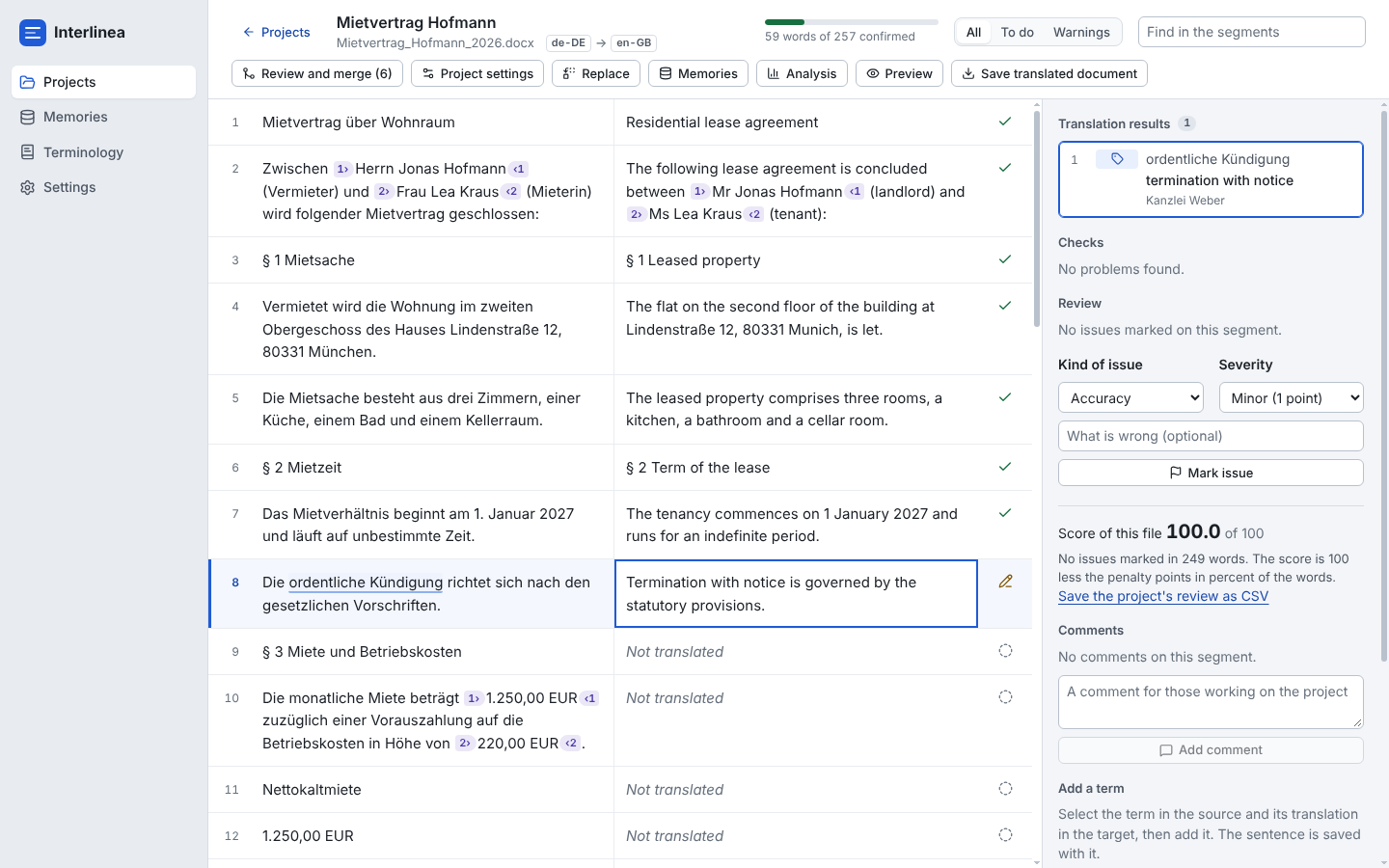
Creating a project opens it in the editor. It follows the conventions translators know from the common desktop tools:
- each segment shows the match it was translated from (CM for a context match, a percentage coloured by its band, or a repetition), outlined once edited and with penalties taken off; an empty segment shows none;
- the best match goes into an empty segment when it opens;
- Ctrl+Enter confirms the segment and fills its repetitions, Ctrl+1 to 9 insert the numbered results, Ctrl+K searches the memory, and F9 inserts the next tag;
- terms from the termbases are recognized in the source, inflected forms included, and added while translating with the sentence they came from;
- the project’s checks run as you type and again on confirm (consistency across the file included), and stay on the segment as warnings until fixed or ignored;
- confirmed segments go into the memories the project updates.
A project with several files or target languages switches between them in the editor’s header. Analysis counts the matches of all files of a language, and is also shown before a project is made. Preview shows the translated document with its headings, tables and footnotes, and a click in it opens the segment.
Bilingual files from Trados (.sdlxliff), memoQ (.mqxliff) and other tools (.xlf, .xliff) open as projects with their translations and states: the languages come from the file, translated segments arrive confirmed, locked segments are read-only, reviewer approvals and rejections are shown, and “Save XLIFF” writes the file back under its own name with only the changed segments and states. A Trados project package (.sdlppx) becomes a project with all its files, and “Save return package” writes one .sdlrpx with every file translated. formats.md has every format.
Word documents (.docx) you choose go through the core’s Word filter, running in the browser as WebAssembly: the units keep their formatting as tags, and “Save translated document” writes the .docx with the original layout.
Memories
Section titled “Memories”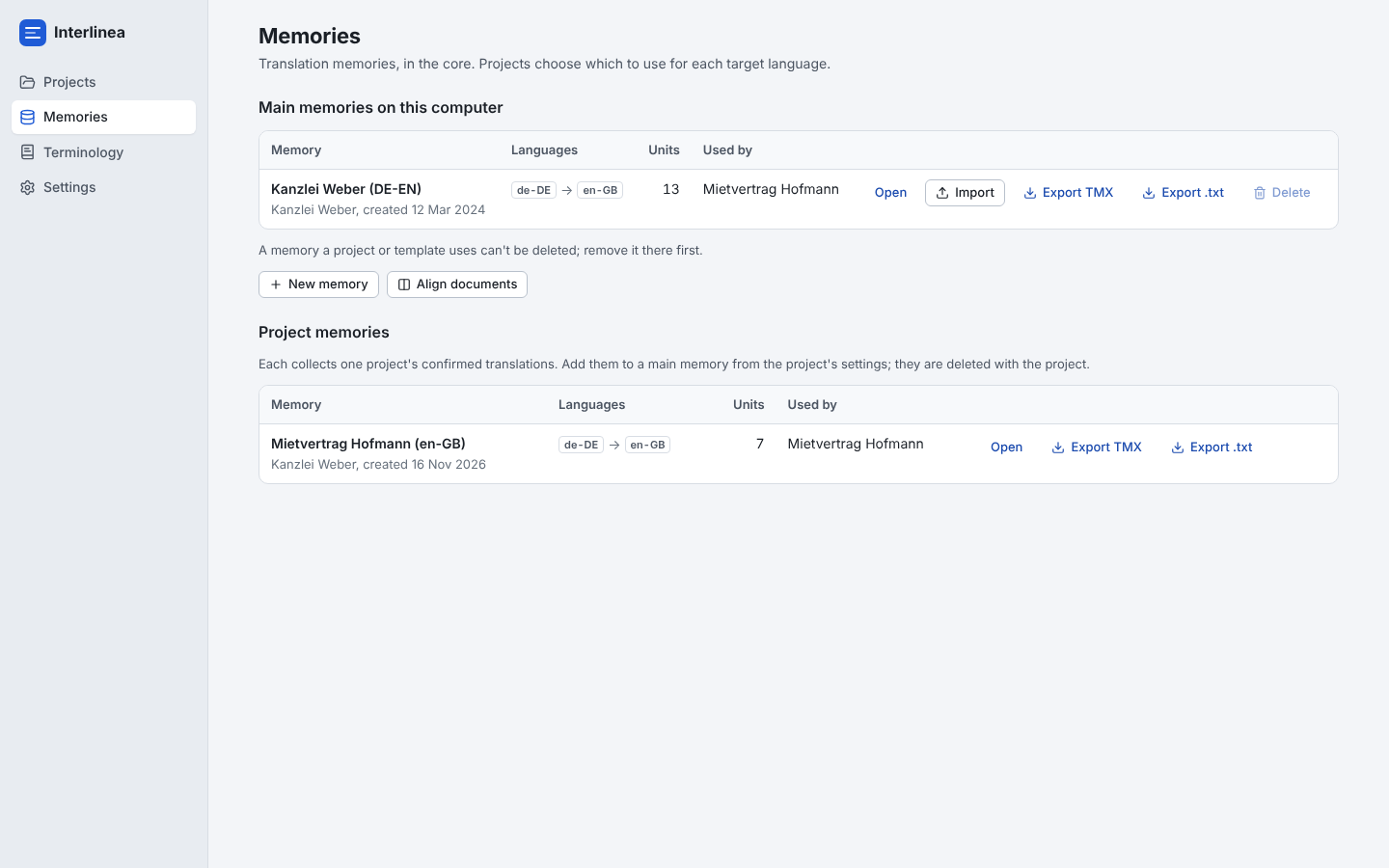
Memories lists all memories with their units and users, creates, imports into, exports and deletes them, and opens each to search, add, change and delete its units.
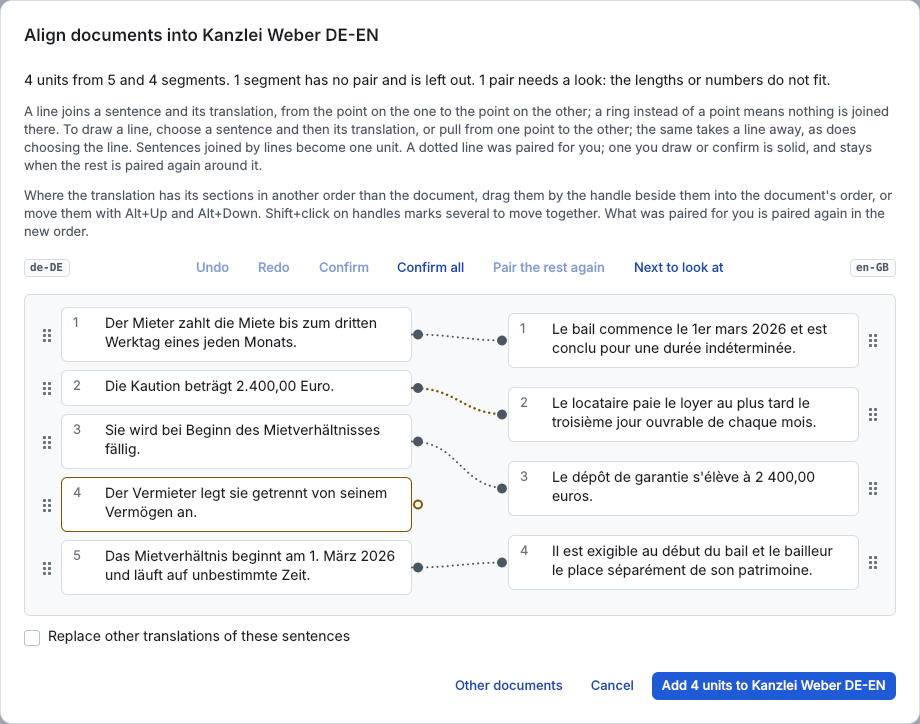
Align documents makes memory units from a document and its translation: the sentences are paired by their lengths, with numbers as anchors, and you check the pairs, draw the ones that are wrong and confirm them before they go into the memory. Where the translation has its sections in another order than the document, drag them by the handle beside them into the document’s order (Alt+Up and Alt+Down do the same, and Shift+click on the handles marks several to move together): the sentences are paired again in the new order, around the pairs already confirmed.
Terminology
Section titled “Terminology”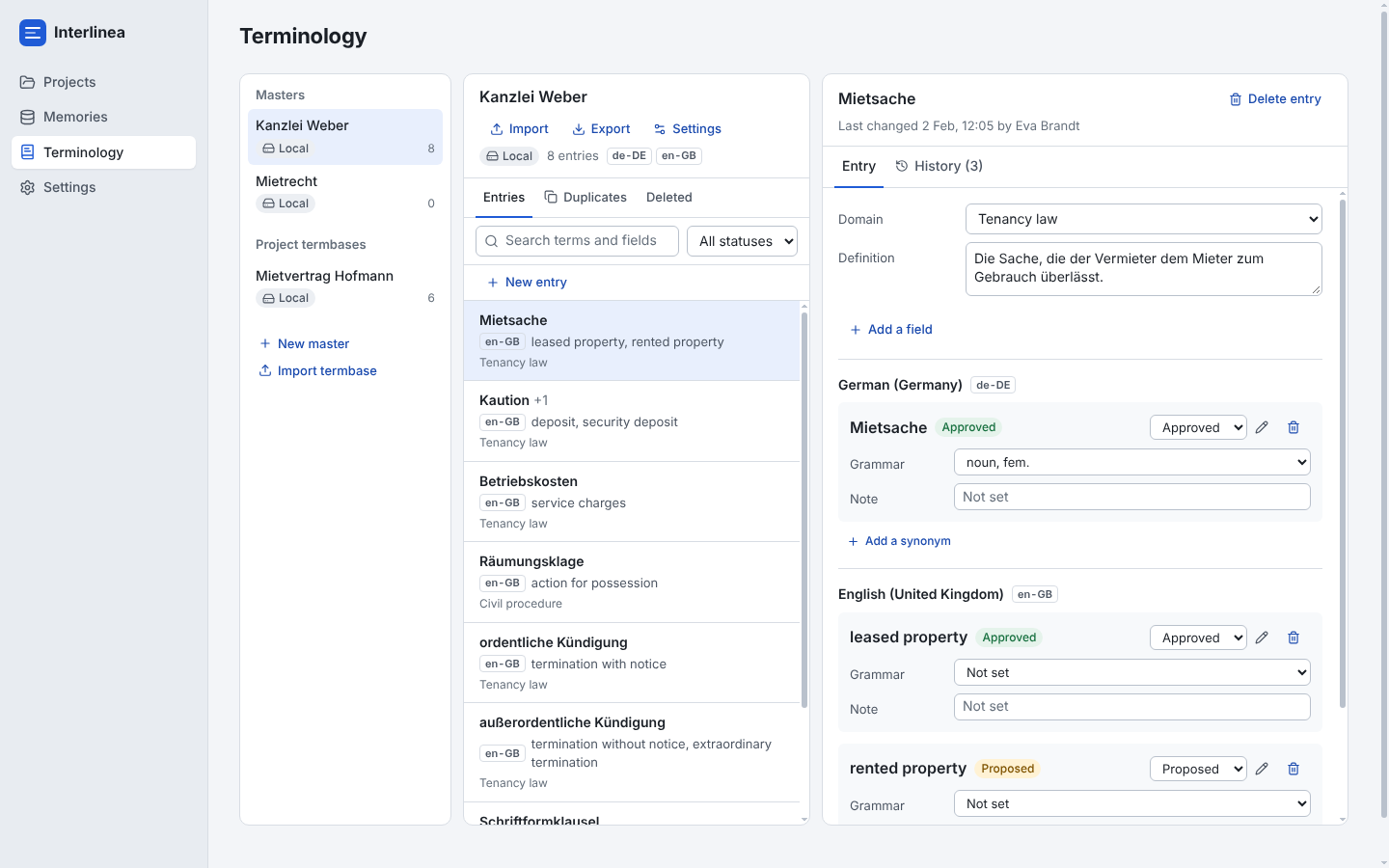
Terminology manages termbases: create, rename and delete them, set their languages and fields, add and edit entries, terms and statuses, find and merge duplicates, import TBX, MultiTerm XML, Excel and CSV files (with column and language mapping and a preview of what the import changes), and export in all of these formats.
Making a termbase
Section titled “Making a termbase”A termbase is made in a few steps, in the browser client and in the desktop app alike:
- Name and kind. A master is a termbase of its own, kept across projects for a client, a subject or a company. A project termbase is based on one or more masters, as a branch is on what it branches from: it shows their entries, has their languages and fields, and submits its new and changed entries to them for review.
- Languages (masters only), chosen from the list of languages with a search by name or code. A termbase has languages, not a source and a target.
- Fields. A master starts from a ready-made structure (terms only; terms with definitions and notes; terminology with grammar) or from the fields of another master, and every field can be changed. A field belongs to the entry, to each language or to each term, and takes text, a value from a list, a number, a date, or yes or no. A project termbase can add fields of its own; such a field reaches a master with the first entry that uses it, once a reviewer approves the entry.
- Review of what will be made, before it is made.
Fields are added, renamed, given another kind or taken out later in the termbase’s settings, and added from any entry. Each kind of field has its own control in an entry: a list to choose from, yes or no, a date, a number that is checked, or text.
Review and merge
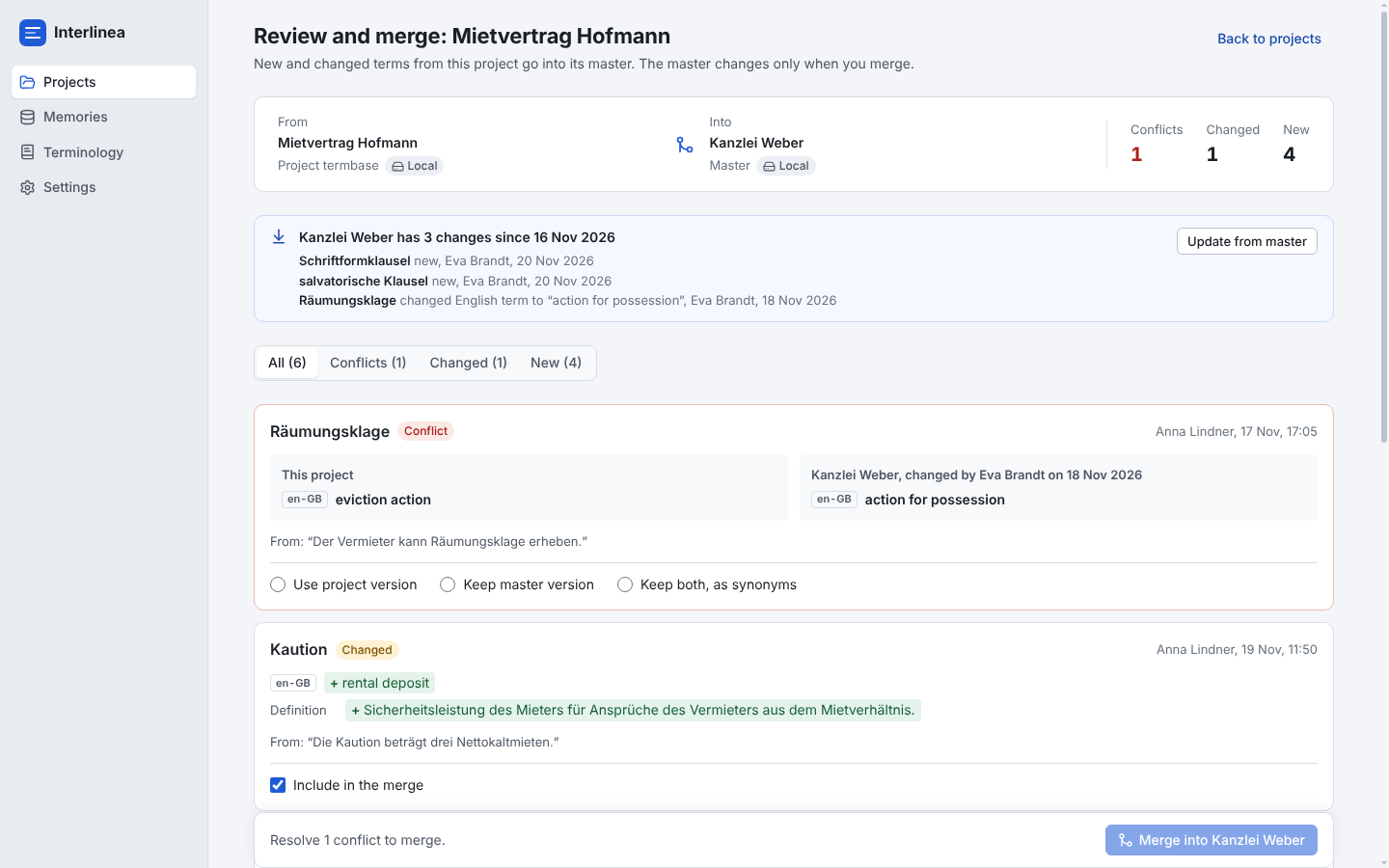
Section titled “Review and merge”A project termbase collects the terms its project adds and changes. They reach the master only through a review: each new or changed entry is shown against the master, conflicts (the master changed the same place) are decided one by one, and nothing changes in the master until the merge. On a team server, review rules say who reviews what, and a merge request can be split among several reviewers.
Glossaries
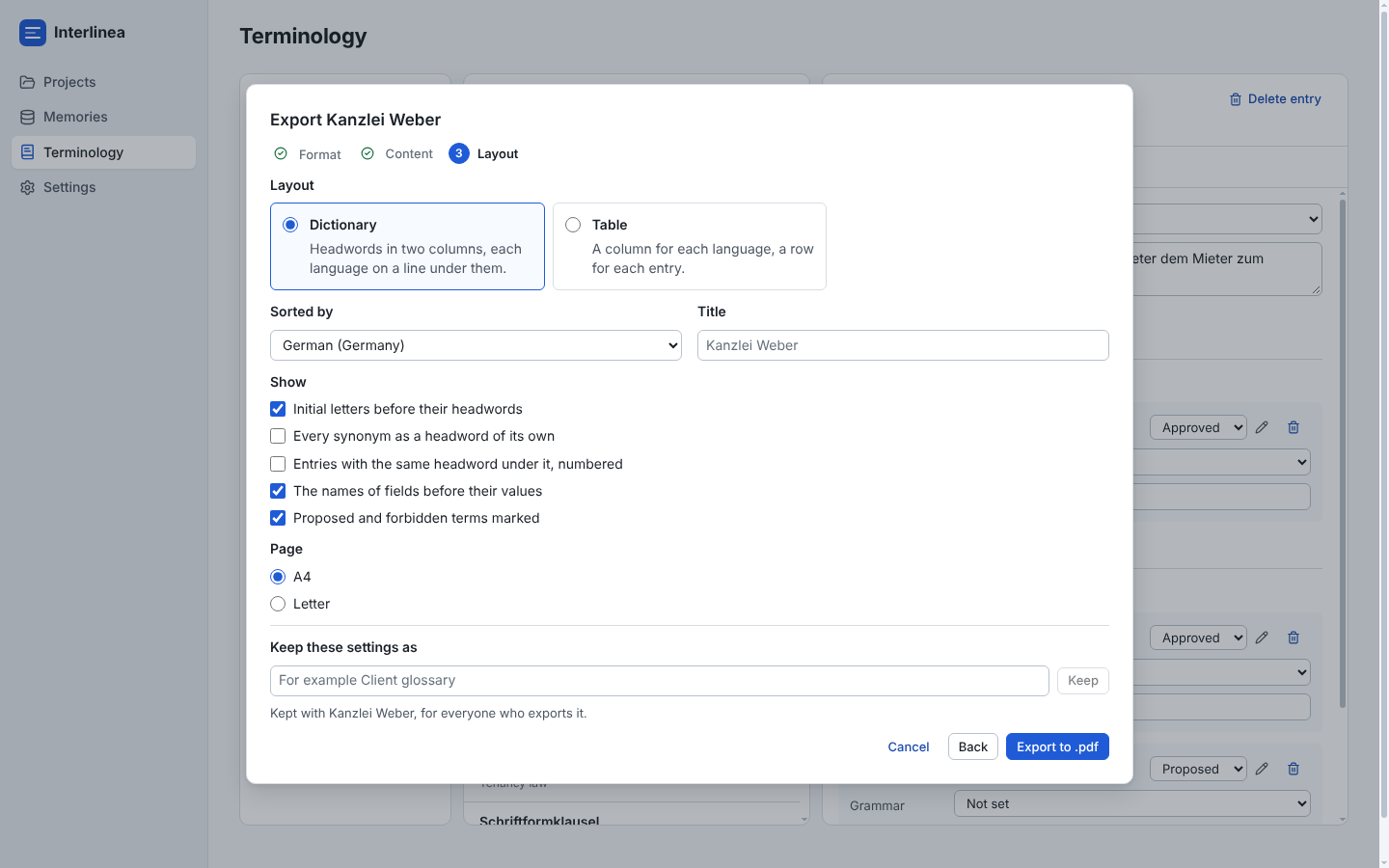
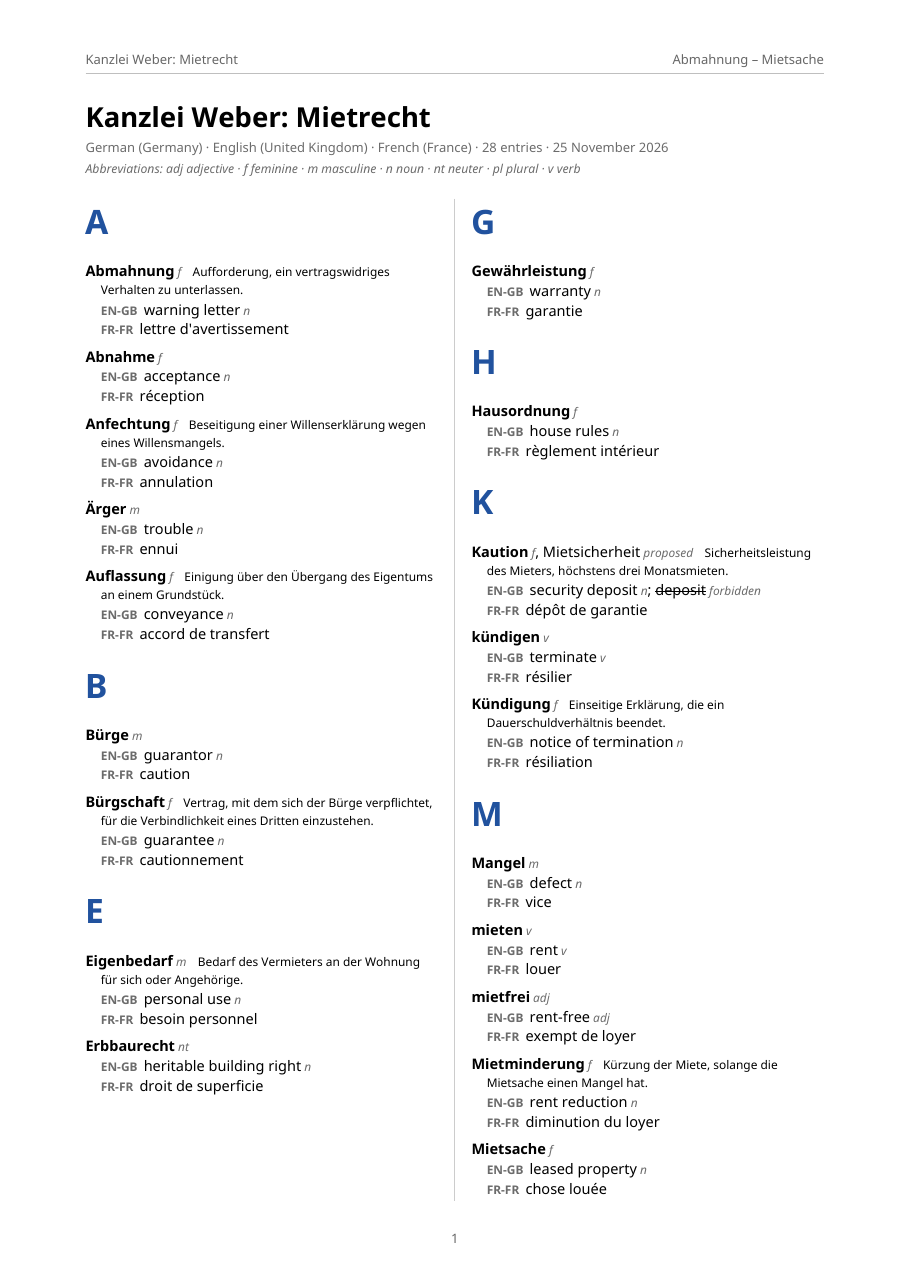
Section titled “Glossaries”A termbase is exported as a glossary to read, print or send: a PDF, a Word document, a web page with a letter index and a search, or plain text. The dictionary layout sets headwords in two columns with each language on a line under them, initial letters, and the first and last headword of each page in its running head; the table layout gives each language a column. Grammar fields (part of speech, gender, number) are abbreviated as dictionaries do, with a list of the abbreviations used.
What goes in is chosen in the same dialog, for glossaries and exchange formats alike: languages and the one to sort by, entries (all, those a search shows, those with a field value, those changed since a day), term statuses and fields. Settings are kept with the termbase by name.
PDF files are made without any other program. The fonts for Latin, Greek, Cyrillic, Arabic and Hebrew come with the app (Noto, under the SIL Open Font License); other scripts take the fonts installed where the PDF is made.
Working on a team server
Section titled “Working on a team server”Settings signs in to a team server (the one serving the web app is offered; passwords, or the server’s identity provider). Projects then lists the projects on the server you may see, with the work given to you. New project asks, at the review, whether the project is kept on this computer or on the server; on the server, memories and master termbases it doesn’t have yet are uploaded with the project, which gets its own memory per language and its project termbase there. A server project’s page shows its details, files, the work given out (managers give out files, languages or segment ranges to translators and reviewers, with due dates; everyone reports their own work done) and who is working now.
The editor opens a server project from the server: the original files are read here with the same filters, for the preview and the limits and notes of bilingual files, and the server’s segments give the translations. Segments not given to you are read-only and say whose they are. Translations are saved on the server as you type and confirm; when someone else saved first, their version is shown and you are told. Others’ translations, new terms and memory units arrive live, and markers show who has which segment open. Nothing of a server project is saved in the browser; the sign-in is.
Settings
Section titled “Settings”Settings has:
- the interface language;
- the appearance: light, dark, or as the system is set (the default); it changes at once, in the desktop app and in the browser client, which keeps the choice in the browser;
- the wording of the terminology pages: plain words, or the terms of git (branch, merge request);
- the editor’s options;
- the team servers you sign in to;
- translation and grammar services, and access tokens for other programs and assistants (integration.md);
- spelling dictionaries, project templates and your name;
- in the browser client, what is saved in the browser and deleting it;
- About Interlinea: the version, the licence and the copyright notice.